Dexcom to FreeStyle Libre 2 Transition Instructions
Set Up Your FreeStyle Libre App and Sensor
- STEP 1
- Download and open the FreeStyle Libre 2 app.

Sign in or create an account. If you have previously used the FreeStyle Libre portfolio sensors, you can “Sign In” to the app with your existing LibreView account. If you have never used the FreeStyle Libre Portfolio sensors before, you will need to create a new account. Select “Get Started Now” and read through and accept the Terms of Use. Then create your account and complete the setup steps. |
|
| STEP 3
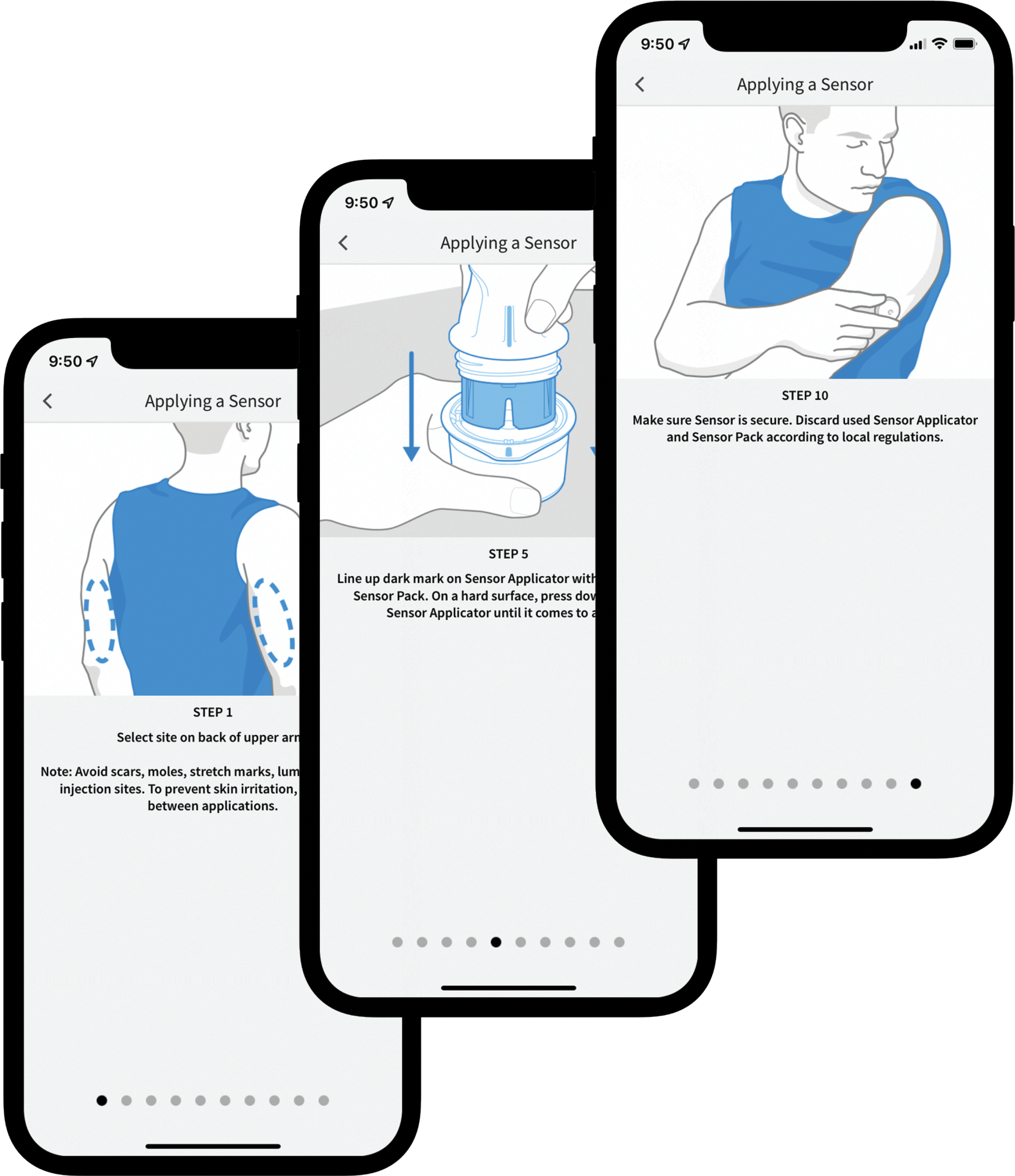
Apply the sensor. The app will guide you through |
|
| STEP 4
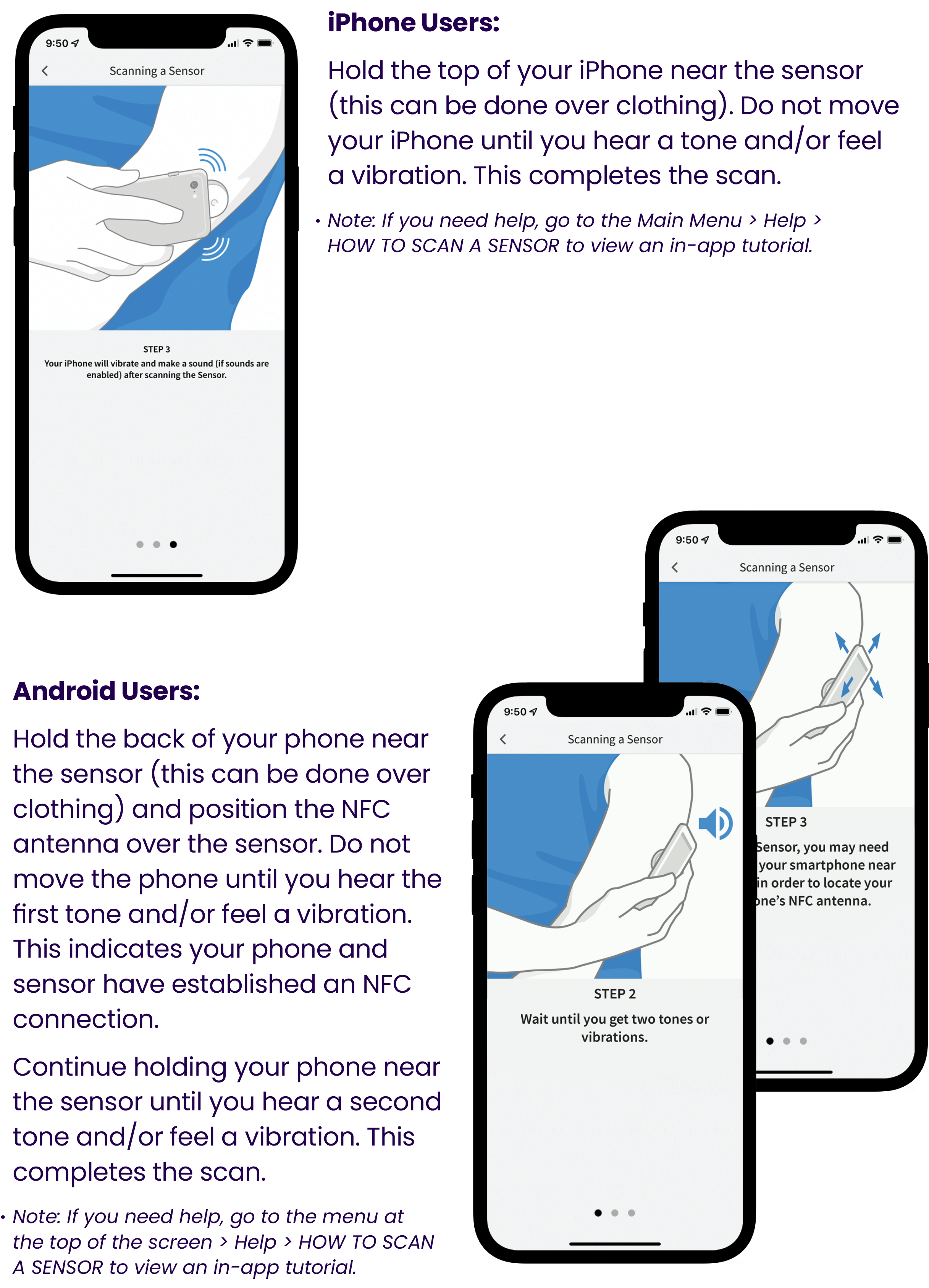
Get readings. Next, the app will explain how to scan the FreeStyle Libre 2 sensor in order to get readings from your sensor. |
|
| STEP 5
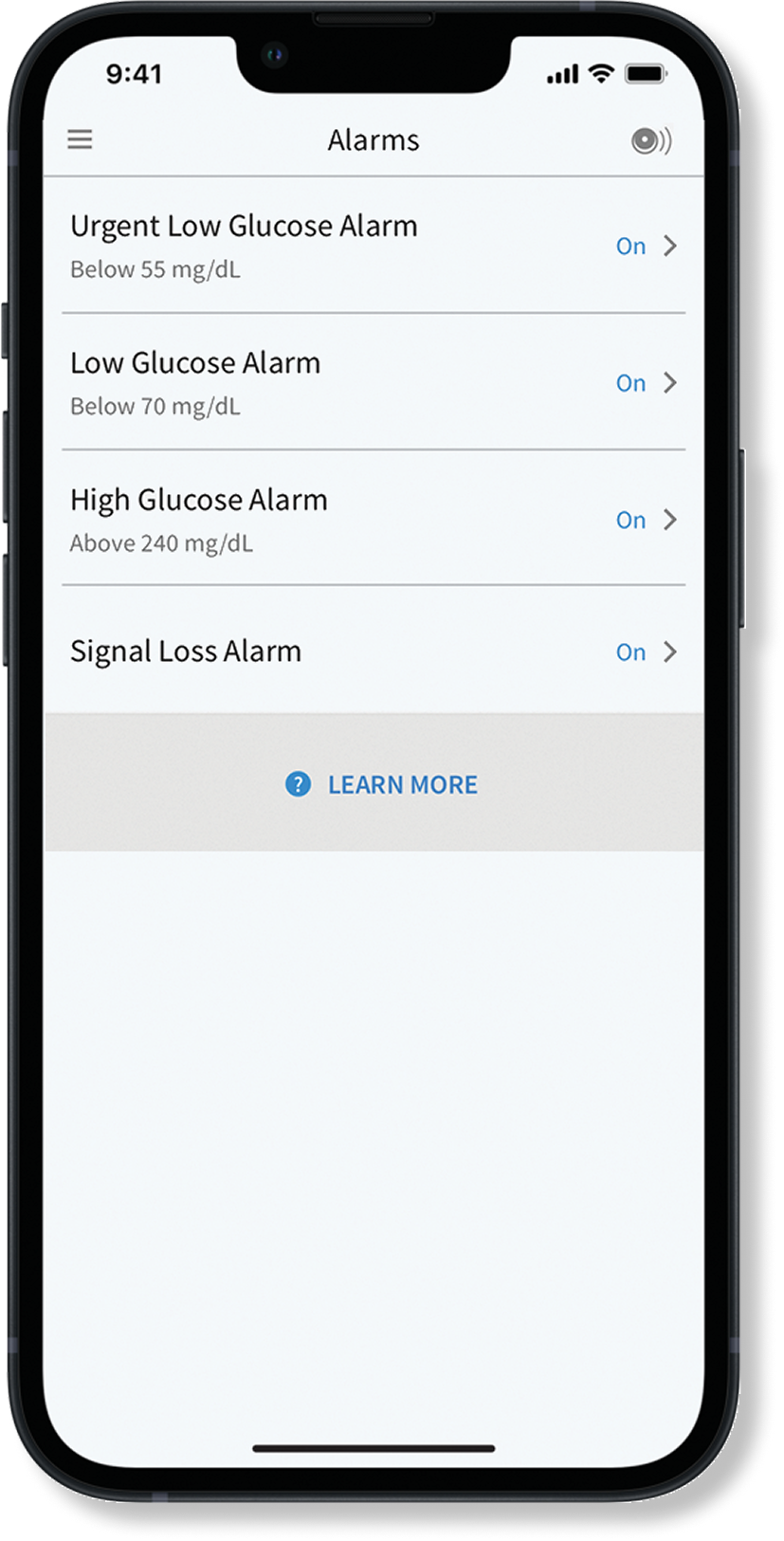
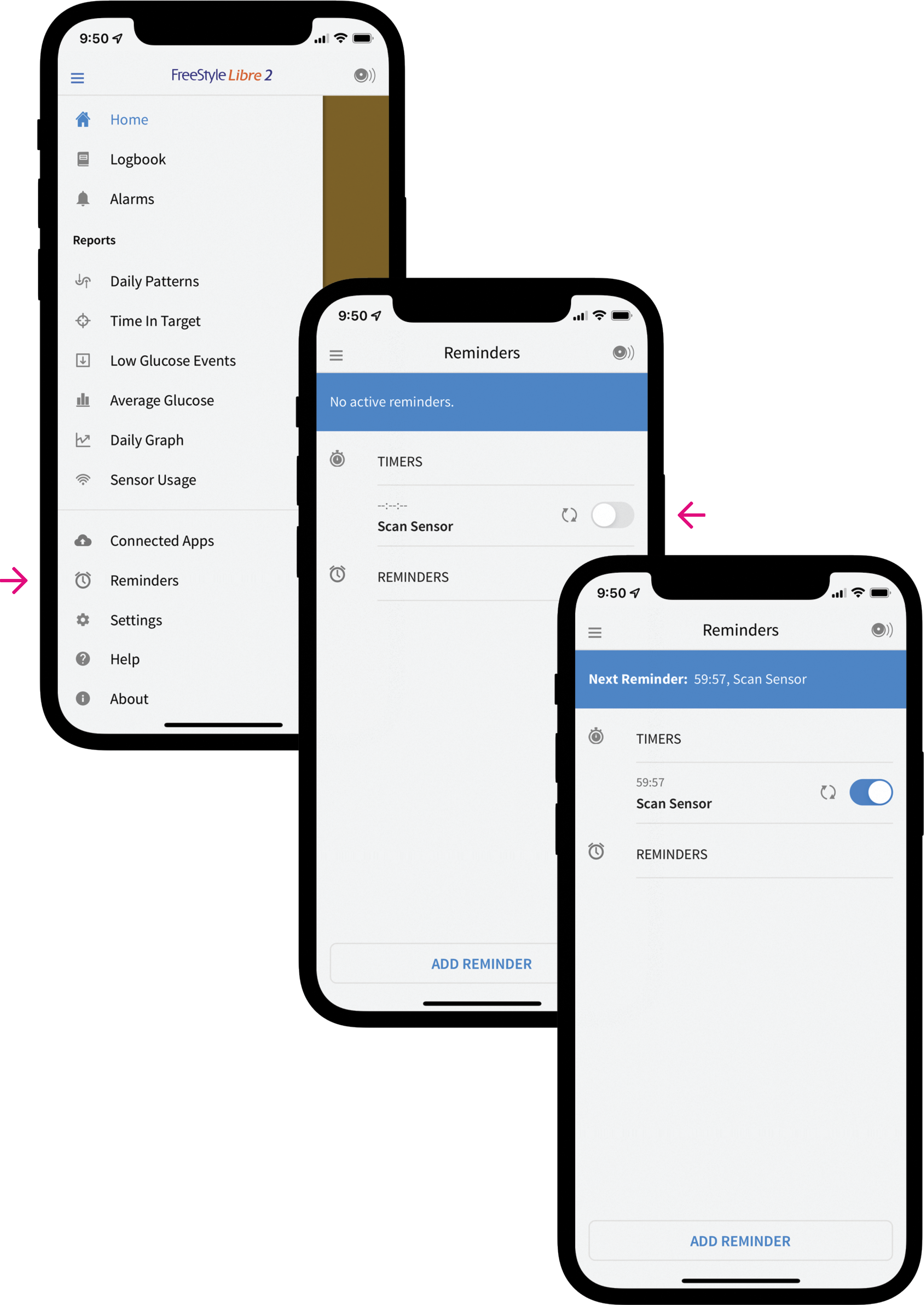
Set alarms by selecting the menu (three stacked lines) |
|
|
|
Connect your FreeStyle Libre Account to Level2
-
- STEP 1
- Download and open the Level2 Health app.
- STEP 2
- Click on the “More” tab in the bottom right-hand corner.
- STEP 3
- Then click on the gear icon in the upper right-hand corner.
- STEP 4
Now on the “Settings” page, please click the “Connect Devices” button.
STEP 5
Click the “Connect+” button next to Abbott FreeStyle Libre, and follow the prompts.
If you receive a message stating “Only 1 CGM can be connected, disconnect before connecting” – please click the “Disconnect -” button next to Dexcom G6, then confirm that you want to disconnect. You will then be able to click the “Connect+” button next to Abbott FreeStyle Libre and continue the process.
You can also connect using the following link:
https://app.mylevel2.com/devices